

What Are Agents?
Agents are configurable AI jobs that review changes in a Trail and evaluate them using customizable instructions. They run in isolated cloud sandboxes and can produce summaries, identify code review findings, or report evaluation scores. Agents can evaluate different aspects of a change, such as Confidence, Risk, Security, and Drift. Each Agent can report a score and flag issues that need attention as Findings. Gates define the requirements that determine whether a Trail can merge. Once configured, your Agents will look something like this: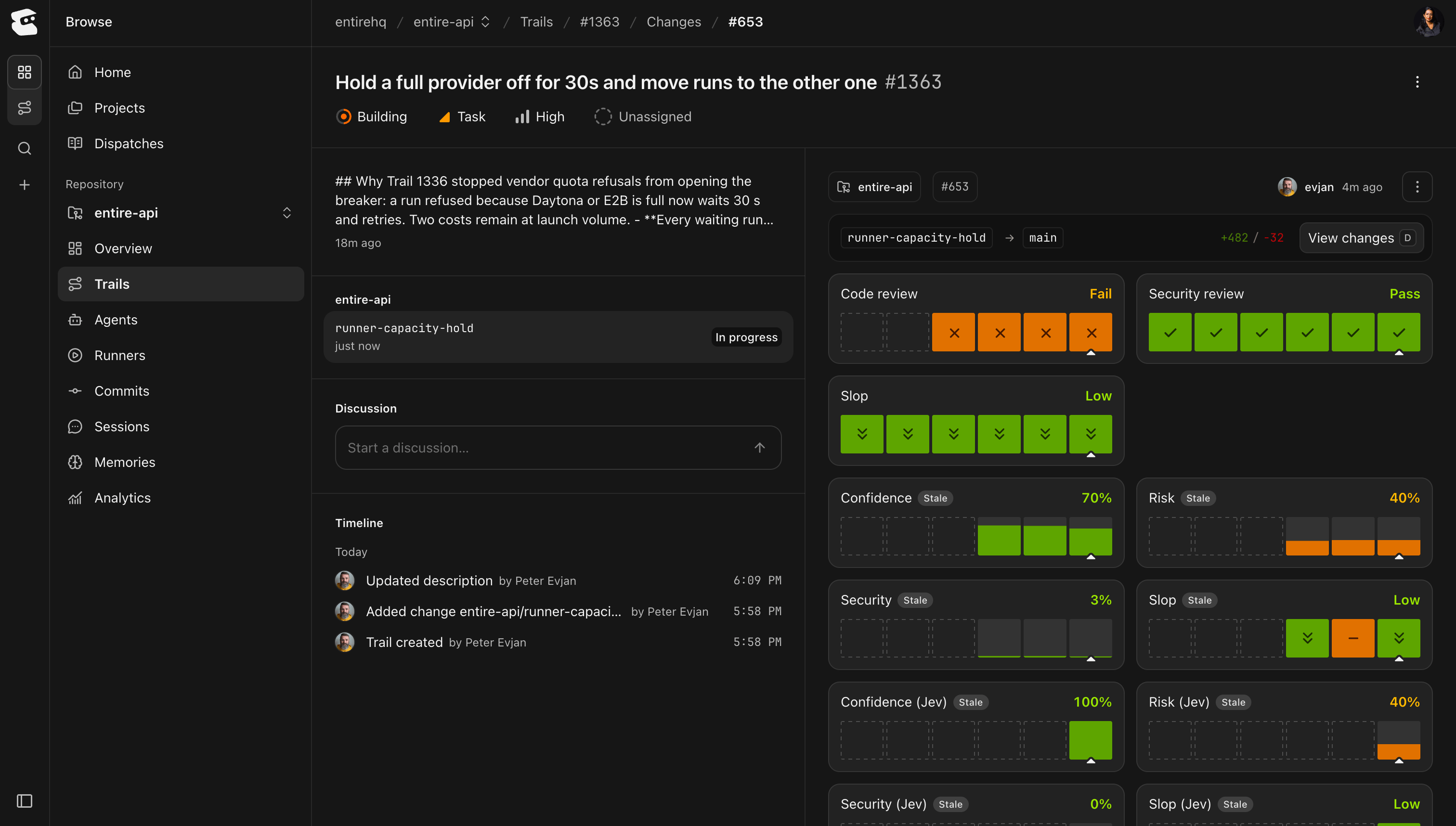
Agent evaluation results on a Trail change.
How Agents Work
With Agents and Auto build on push enabled in repository settings, pushing changes to a Trail branch triggers the configured Agents. Each Agent uses its instructions and selected configuration to evaluate the changes. Entire displays the results on the Trail. Reviewers can use the scores to focus their review, investigate Findings, and push fixes for another evaluation. The available preset Agents include:- Code review: Reviews every push and flags what needs to be fixed.
- Security review: Checks every change for anything that could lead to a security breach in your codebase.
- Slop: Catches sloppy patterns and drift before you merge them on your main codebase.
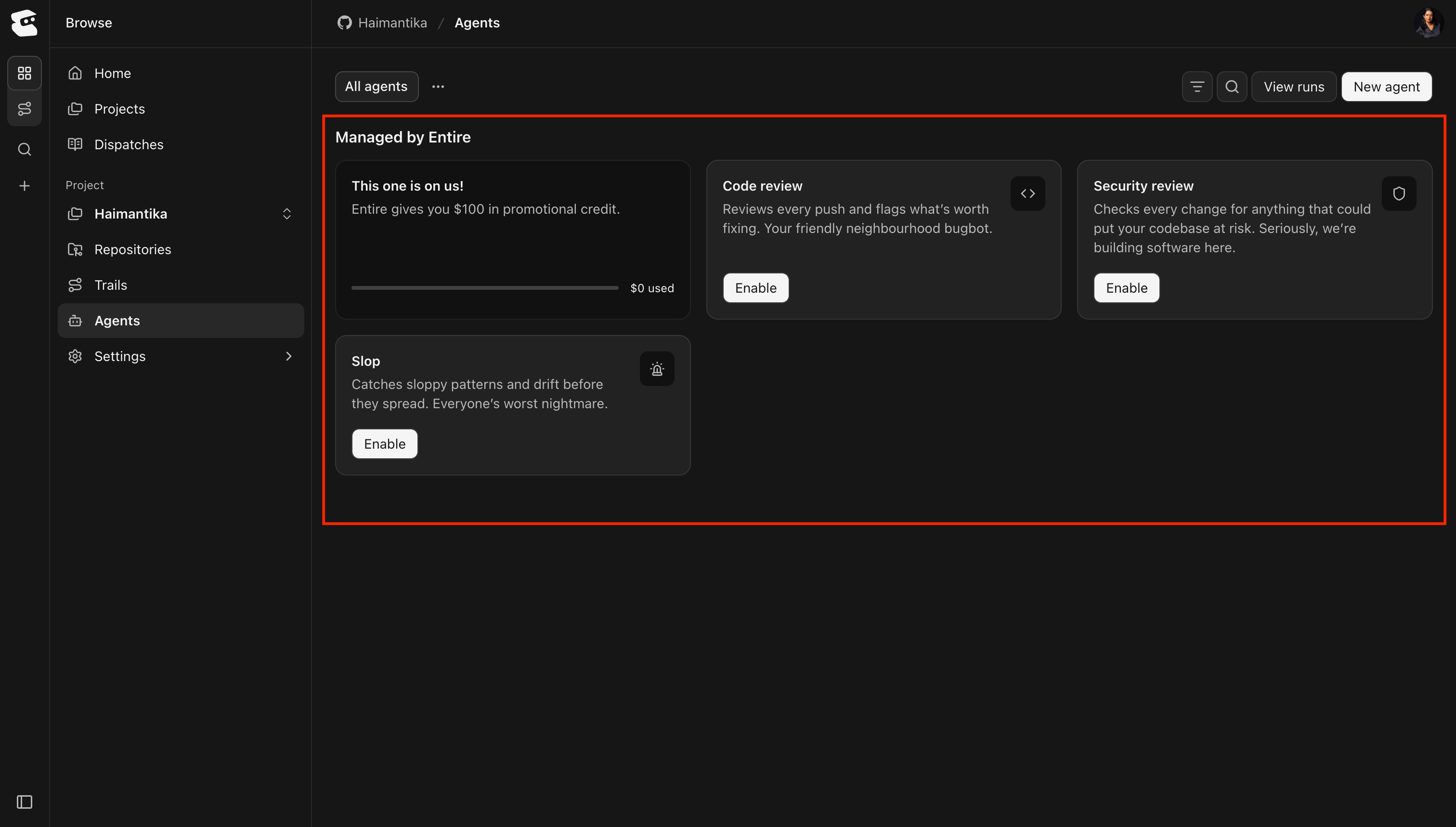
Preset agents available on the project's Agents page.
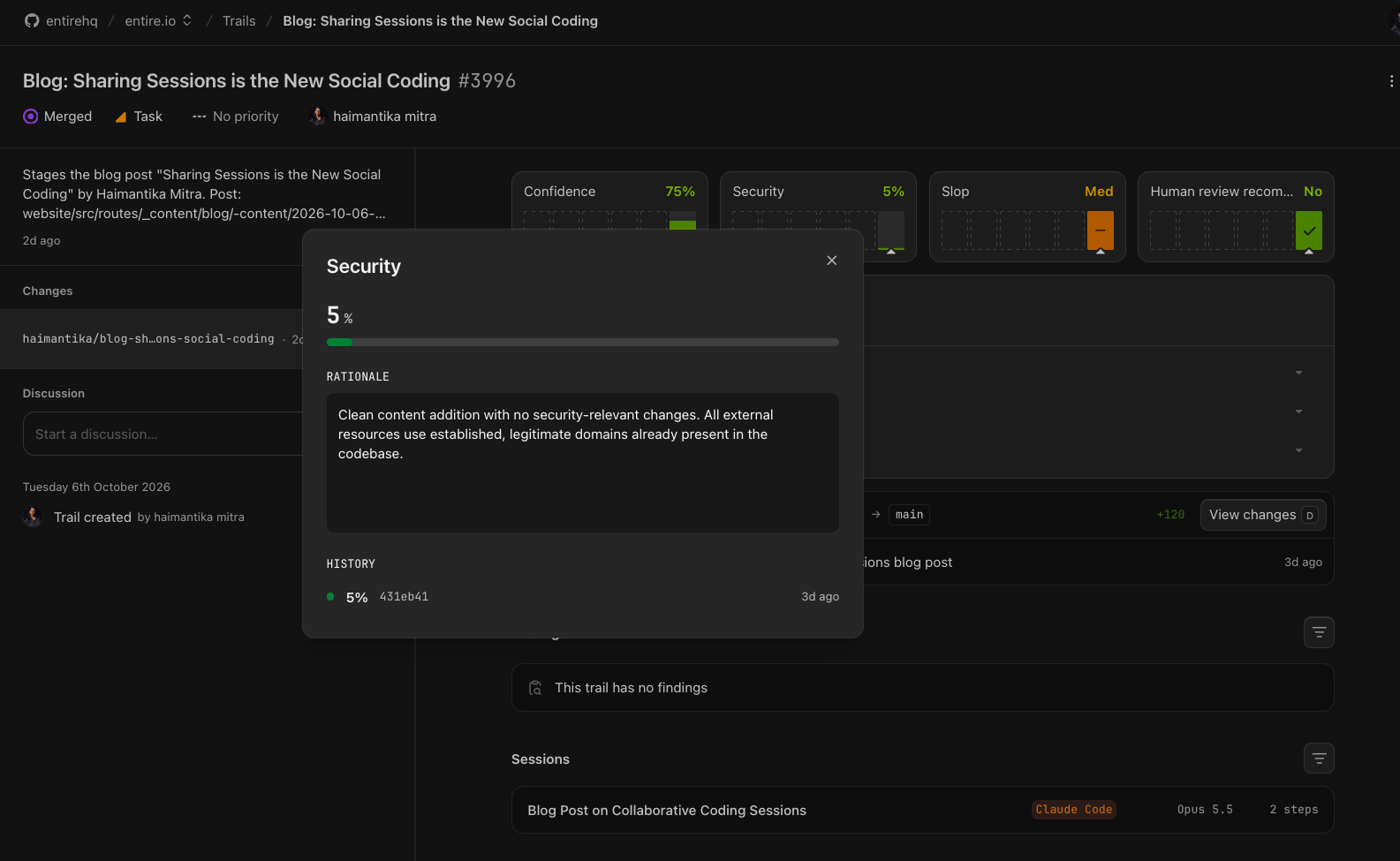
A Security monitor score with its rationale and history.
Set Up Your First Agent
To create your first Agent:- Navigate to your project on Entire.com.
- Open your project and go to Agents then click on Manage Agents.
- Choose an Agent from the list of presets and click Enable to start using it.
Creating a Custom Agent
If you want to create an Agent with your own configuration, follow these steps: Click New agent. Under Agent, give it a name and description. Select the harness, model, reasoning effort, and timeout. Then write the Instructions describing what the Agent should review and evaluate. For example, you can create a Migration Risk Agent to evaluate database migration changes. Under Agent, enter the following details:- Name: Migration Risk
- Description: Evaluates database migration changes for potential deployment and rollback risks.
- Harness, model, reasoning effort, and timeout: Select the configuration that meets your evaluation requirements.
Leave the Active toggle enabled and click Create agent.
After it is successfully created, you should see it under the Agents tab as in the image below.
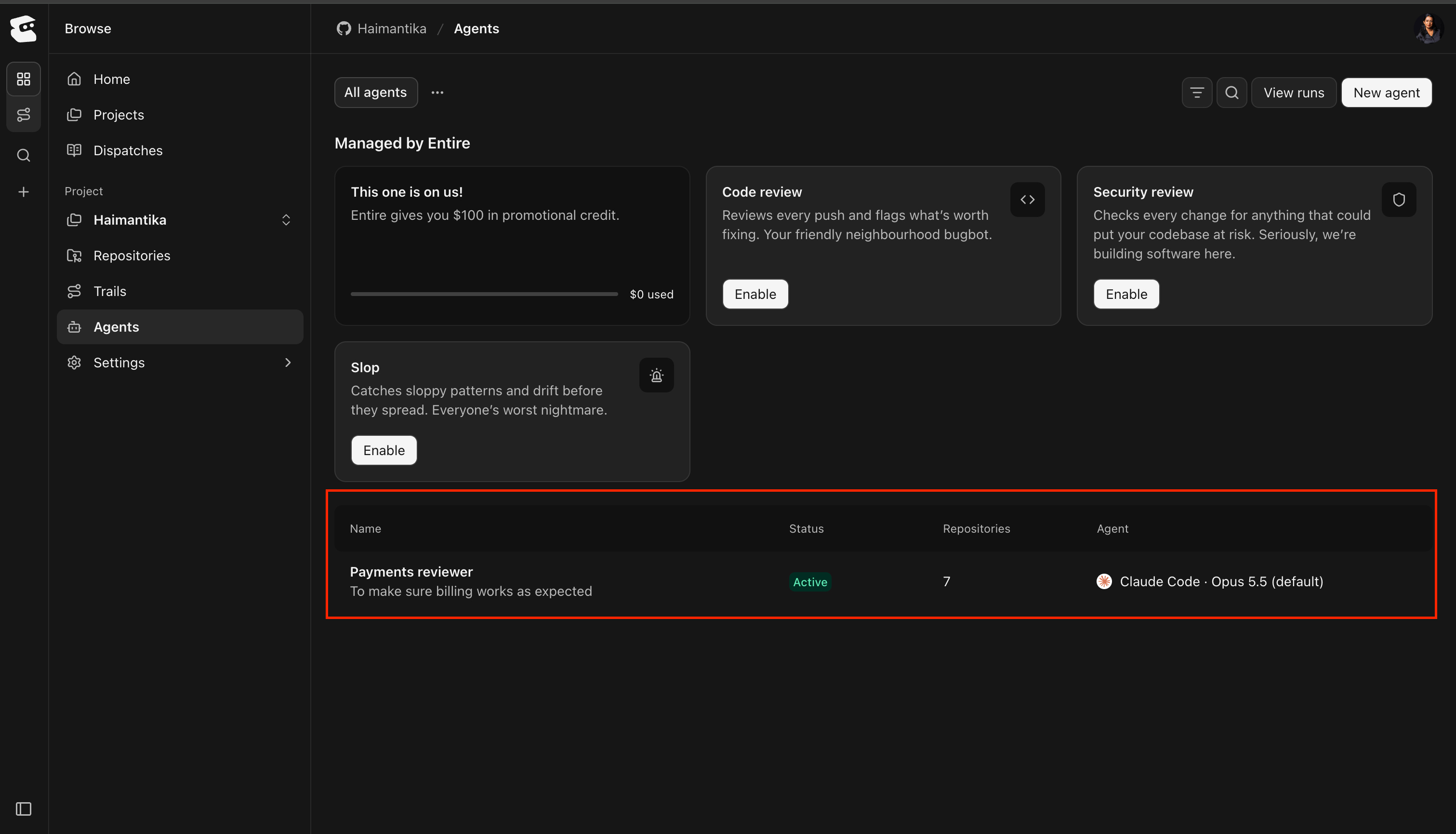
A custom agent listed on the project’s Agents page.
Understand the Agent Configuration
Agent Insights
Agent Insights helps you understand how coding agents use tokens across your Trails and repositories. You can track token consumption by activity, compare usage across models, and identify changes that required more agent effort than expected.How to Enable Agent Insights
To start tracking agent token usage, go to the Plugins tab in your project and find the Agent Insights extension. Click Install, select the repositories on Entire where you want to enable Agent Insights, and click Install again.View Token Usage in a Trail
Once it is enabled, open a Trail and navigate to Sessions to see a breakdown of token usage across agent activities, such as understanding code, building, checking, reworking, reviewing, and coordinating. Hover over the visualization to see the percentage of tokens spent on each activity. This helps you understand how the agent worked on a change and whether it spent more tokens implementing changes or making repeated fixes.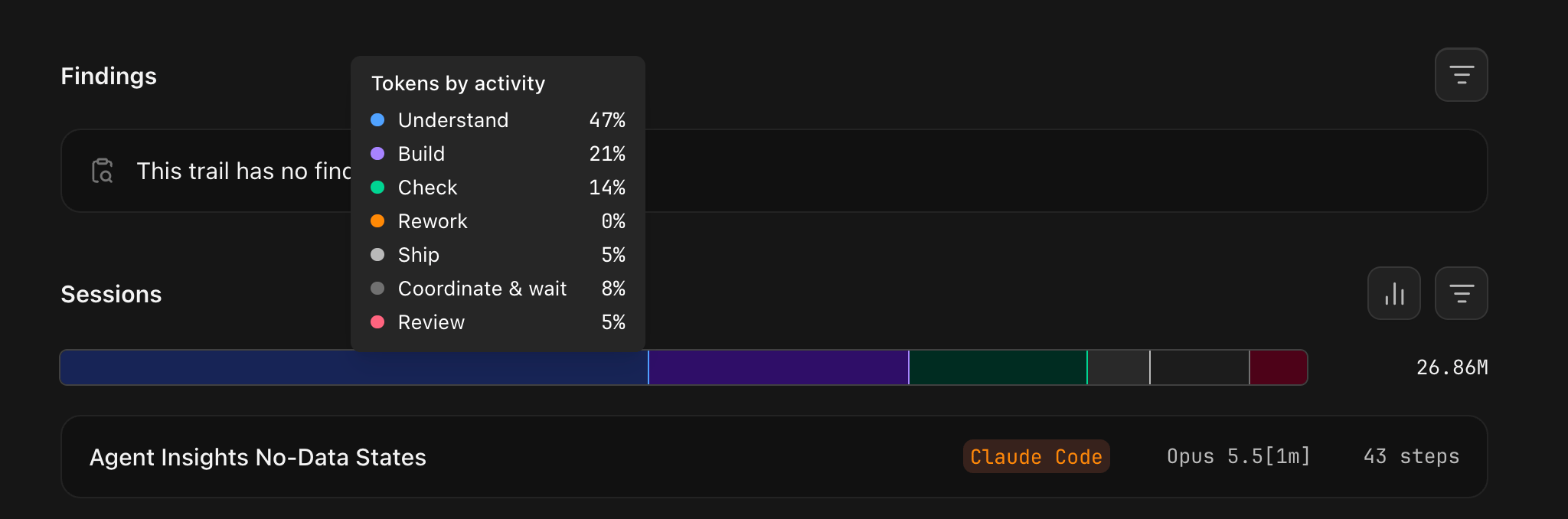
Token usage by activity within a Trail’s Sessions section.
View Agent Insights in Repository Analytics
Open your repository’s existing Analytics page and scroll to the Agent Insights section. The Analytics page is available independently of the plugin. Enabling Agent Insights adds more detailed token usage metrics across merged Trails through three visualizations:- Token Volume by Model: Track daily token consumption grouped by the models used.
- Tokens vs. Lines Changed: Compare token usage against the number of lines modified in each Trail. This helps identify which Trails consume the most tokens.
- Tokens by Activity: Compare token usage across activities between the current and previous week to understand how agent behavior changes over time.
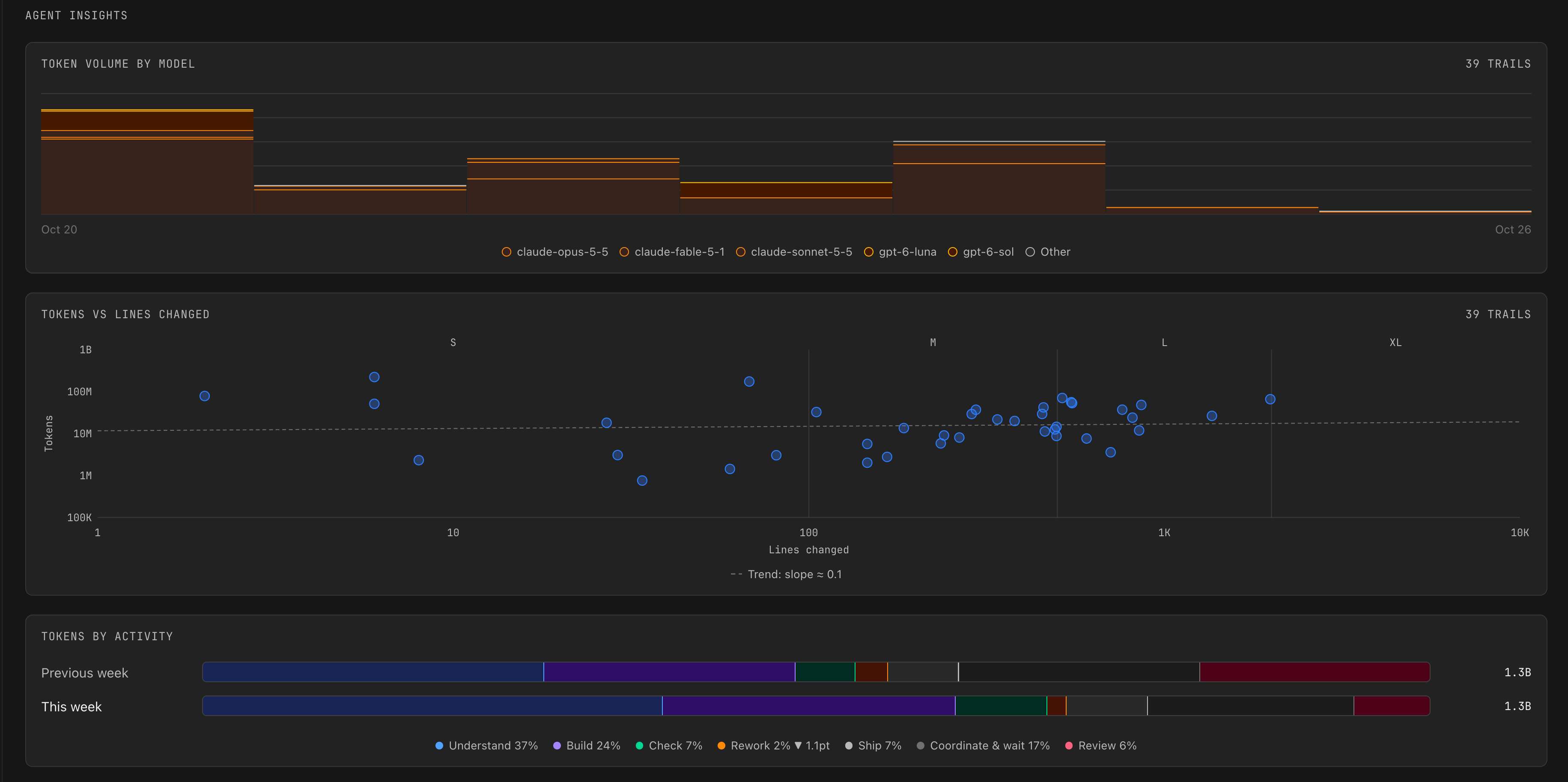
Agent Insights on the repository Analytics page.