

What Are Trails?
In Entire, a trail brings together what you want to build, how the code changed, and the evidence you need to review it. Trails connect human and agent collaboration across a project. You can create a trail before writing code. Start with the problem, intended outcome, and constraints, then link a branch when you are ready to build. Each linked branch is represented by a change, with its own commits, checkpoints, agent sessions, findings, and merge requirements. A trail can contain changes across multiple repositories in the same project.How Do Trails Help?
Trails put the context behind a change alongside the code, whether you are building a feature or reviewing someone else’s work. You can follow the decisions made during agent sessions and see what still needs attention before merging. For example, a trail for account recovery can begin with acceptance criteria, collect changes to the API and frontend, and bring together agent findings, CI results, and human approvals. Each change is reviewed and merged separately.What Can You Do with Trails?
- Capture intent early. Create a trail with a title, description, type, assignees, and priority before attaching code.
- Follow the work. Link branches as changes and keep their commits, checkpoints, and agent sessions together.
- Evaluate changes with agents. Configure Agents to review changes and report findings and signals. Automatic runs depend on each agent’s enabled trigger, repository selection, readiness condition, and branch or path filters.
- Review with context. Inspect each change’s diff, findings, sessions, and timeline alongside the trail’s intended outcome.
- Set merge requirements. Configure Gates for requirements such as branch freshness, human approvals, findings, and supported CI checks.
- Work from your coding agent. Ask your agent to use the Entire CLI to create or update a trail and investigate its findings. Have it run
entire agent-helpfirst to discover the available commands.
Changes in mirrored GitHub repositories use a linked GitHub pull request for
CI and merging. Entire reviews and GitHub reviews are separate; do not assume
an approval in one satisfies the other. GitHub branch rules can still block
merging after Entire’s gates pass.
Before You Start
Sign in to entire.com and make sure you can access the project and repository. For a GitHub repository that is not connected yet, open repository setup, select Configure GitHub App, and grant repository access. For an organization-owned repository, you may need a GitHub organization owner or someone authorized to manage the app installation. To capture local coding-agent sessions and checkpoints, install the Entire CLI, sign in, and enable Entire in each local repository where you work. Local CLI setup is not required to create a trail in the UI. Repository writers can create repository-scoped trails and link branches. Creating a trail without repository scope requires project management permission. Changing the repository’s Trails setting requires repository admin permission.Enable Trails
In entire.com, open the repository’s Settings tab then go to General. Trails should be on by default and it should come with some preset Agent configurations that you can use to review your code better.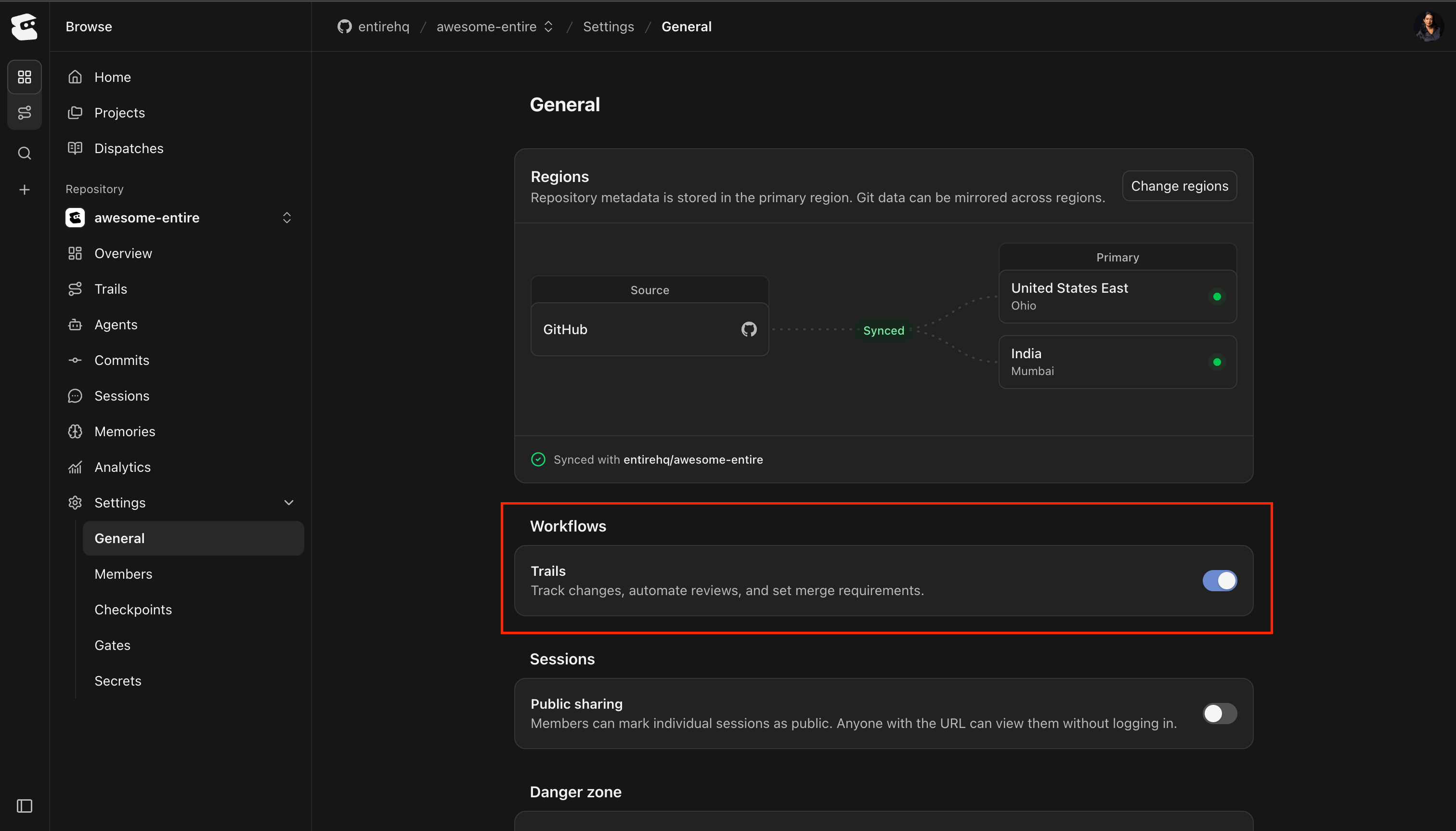
Trails enabled under Workflows in the repository's General settings.
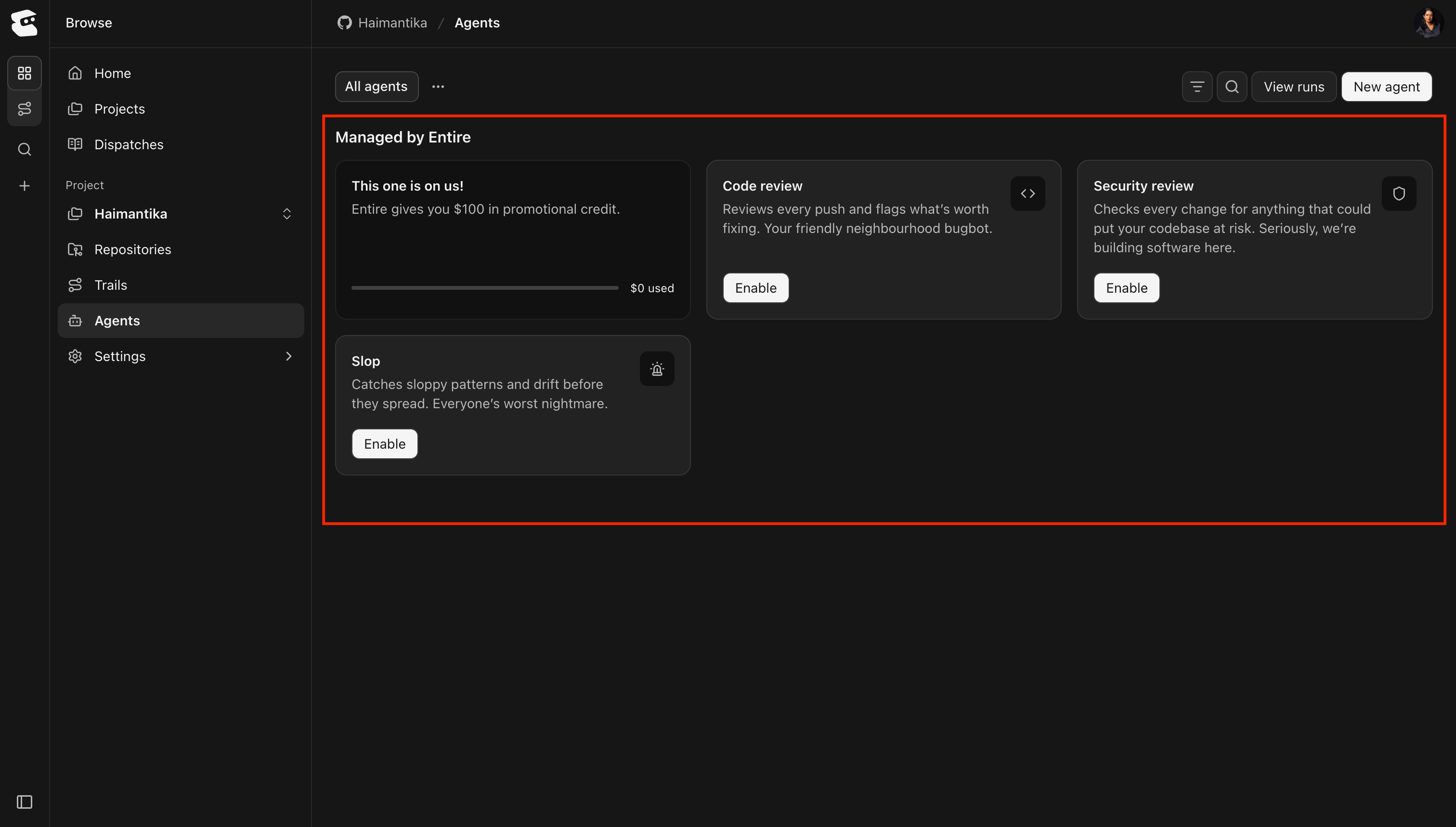
Preset agents available on the project's Agents page.
entire enable sets up local session capture; it does not turn on the repository’s Trails setting in entire.com.
Create a Trail
- CLI
- UI
- Agent Prompt
From your repository root, confirm the installation, sign in, and enable local session capture if you have not already:Run
entire enable installs Git and agent hooks and creates the repository’s Entire settings. To select an agent without the selection prompt, use a command such as entire enable --agent claude-code.Create a trail with a title:--title is required. From a feature branch, this command publishes that branch and links it to the new trail. From the base branch, it derives a new branch name from the title. It does not commit uncommitted changes or switch your local checkout.To capture intent without publishing or linking a branch, use:entire trail create --help for the available options.Plan Before Attaching Code
A trail without changes lets you capture and discuss work before implementation. It is an open trail in the Planning phase, not a separate draft status. Trail lifecycle statuses areopen and closed; phases reflect the linked work.
For example:
--no-branch still scopes the trail to that repository. It skips branch publication and linking.
Link a Branch
In the UI, open the trail’s actions menu and select Add change. Choose a repository, base branch, and existing head branch, then select Add change. The branch must already be available remotely; this dialog does not create a new branch. From the CLI, link an existing remote branch with:123 with your trail’s number or identifier. Unlike trail create, trail link does not publish a local branch: push it first. To create a new remote branch instead, check entire trail link --help for --branch-action create and --base.
Repeat this from other repositories in the same project to add their changes to the trail.
Configure Agents and Gates
Creating a trail or enabling Trails does not automatically configure review agents. Open the project’s Agents page to add an Entire preset or create a custom agent. Select the repositories it reviews, choose or create an environment, and configure when it runs. Agent configuration requires permission to manage project agents and write access to the selected repositories. An enabled push trigger runs only when its readiness condition and branch or path filters match an open change. By default, a push trigger runs when a change is ready for review. In repositories without an approvals gate, open changes are treated as ready. See Agents for setup and trigger options. To set merge requirements, open each repository’s Settings → Gates and configure Gates.Project Agents are separate from repository runners configured in
.entire/runners/. entire runner setup creates or tailors those runner
files; it does not configure project Agents. Existing runner-enabled
repositories may also show monitors such as Confidence, Risk, Security, and
Drift. Their Auto build on push setting does not control project Agents.
See Runners if your repository uses that system.Next Steps
- Work on a linked branch with your coding agent. With local session capture enabled, Entire records checkpoints and sessions that can be viewed with the change.
- Commit and push your changes. Configured agents run when their triggers match. Mark the change ready for review when required by your workflow.
- Confirm that the implementation matches the trail’s intended outcome. Read the agent results and any configured monitors, then select View changes to inspect the diff.
- Investigate findings, fix the issues, and resolve or dismiss findings as appropriate. Use sessions and the timeline for context. You can also ask your coding agent to help through the CLI.
- Check each change’s merge requirements, address blocking gates and conflicts, and obtain any required approvals. Select Merge when that change is eligible. Merging one change does not merge the trail’s other changes.